Practical guide 6 min read
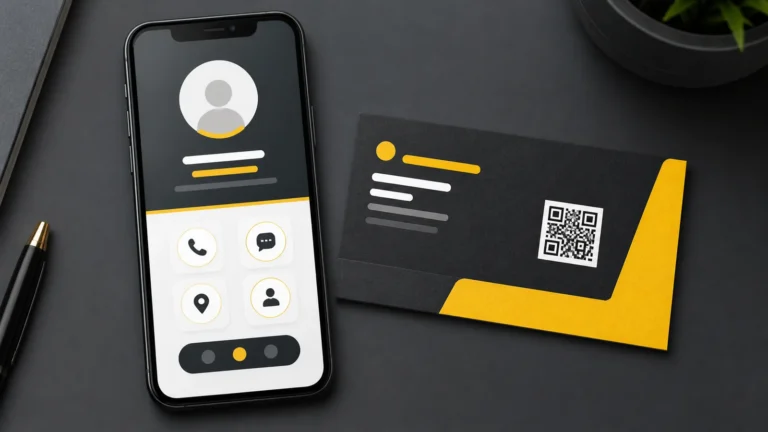
A digital visiting card is a mobile-friendly page that helps someone understand who you are, what you offer and how to contact you. It can combine contact details, service information, social links, directions and enquiry actions in one shareable link.
The most useful card is not the one with the most sections. It is the one that presents accurate information in the order a customer needs it. This checklist explains how to plan the content before creating or updating a digital visiting card.
1. Start with a clear identity
Display the person’s name or business name prominently. Add a role or short description that makes the work understandable without industry jargon.
Use a clear logo or professional photograph when appropriate. The image should be current, correctly cropped and readable on a small screen.
2. Write a short value statement
Explain what you help customers do and, when relevant, where you provide the service. Keep this statement specific and factual. Avoid unsupported claims such as “number one” or “guaranteed best”.
A useful statement might mention the service type, customer group or main outcome. Detailed explanations belong in the service section rather than the first screen.
3. Prioritise contact actions
Choose the contact methods that are actively monitored. Common options include:
- Phone call
- WhatsApp or another messaging service
- Enquiry or appointment form
- Directions to a customer-facing location
Do not give every action equal visual weight. Make the preferred option obvious and confirm that every link works on a real mobile device.
4. Keep business details accurate
Review the business name, phone number, email address, website, address and opening hours. These details should match the main website and important business profiles.
If customers are not served at the business address, do not present it as a walk-in location. Use an accurate service area or meeting process instead.
5. Present services in a scannable format
List the main services using short headings and one-sentence explanations. Link to detailed website pages when a customer needs more information.
Avoid copying a complete brochure into the card. The page should help a visitor choose the next step quickly. Group related services and keep the most important items near the top.
6. Add trust signals that can be verified
Depending on the business, trust information may include registrations, certifications, portfolio examples, genuine customer reviews, project photos or an established website.
Do not publish invented client counts, ratings or performance claims. Obtain permission before using a customer’s name, photograph, logo or testimonial.
7. Choose social links carefully
Include social profiles that are current and relevant to the professional identity. An inactive or unrelated account can distract from the main purpose of the card.
Open each link while logged out to confirm that the public profile works. Use consistent branding and contact details across the profiles.
If the profiles also need an ongoing content calendar, publishing workflow and enquiry measurement, review the social media marketing service. This work is scoped separately from the digital visiting card.
8. Make the page easy to share
Use a short, memorable link associated with the person or business. Test how it appears when shared through messaging and social platforms.
A QR code can help people open the card from printed material, a counter display, event badge or presentation. Test the code at different sizes and under normal lighting before printing.
9. Provide a contact-saving option
A downloadable contact file can help visitors save the correct name, phone number, email and organisation. Review the saved result on both Android and iPhone devices.
Include only details intended for public distribution. Avoid exposing private numbers or internal email addresses in the contact file.
10. Plan for multiple languages
If customers prefer different languages, decide which content needs translation and how visitors will switch. Navigation and action labels should be as clear as the main text.
Use reviewed translations rather than relying only on automatic output for important service, legal or payment information. Check whether translated text fits the mobile layout. To compare how language choices, contact actions and card layouts work on mobile, watch the digital visiting card demo videos in six languages.
11. Cover accessibility and mobile usability
Use readable text sizes, sufficient colour contrast and buttons with enough spacing. Images that communicate information need descriptive alternative text.
The page should work with keyboard navigation and common assistive technologies where possible. Avoid animations that interfere with reading or contact actions.
12. Add privacy information where needed
If the card collects form data, appointment details or analytics, explain the relevant data practice through an accessible privacy notice. Request only the information required for the enquiry.
Third-party embeds, maps, videos and messaging services may also process visitor data. Review them before adding unnecessary integrations.
13. Measure useful actions
Track meaningful interactions such as phone, WhatsApp, email, directions, contact saving and successful form submissions. Measurement should help improve the page, not collect data without a purpose.
Use clear event names and test them after launch. Combine analytics with real enquiry quality rather than judging the card only by views.
14. Set an update routine
A digital card is valuable because information can be updated without reprinting it. Review the card when a phone number, role, service, address, profile or opening hour changes.
Schedule a periodic test of every link and contact action. Remove outdated offers and expired event information promptly.
Digital visiting card launch checklist
- Name, role and business identity are clear.
- Preferred contact action is prominent.
- Phone, message, email and website links work.
- Services are concise and accurate.
- Public address or service area is correct.
- Social links open the intended profiles.
- Contact saving works on common devices.
- QR code has been tested before printing.
- Mobile layout, contrast and text size are readable.
- Analytics and enquiry events are tested.
Frequently asked questions
How do you make a digital visiting card?
Prepare accurate identity, service and contact information, organise it into a mobile-friendly page, add working actions and a shareable link, then test it on real devices before distribution.
Can a digital visiting card replace a website?
It can serve as a focused contact and introduction page, but businesses with detailed services, content, ecommerce or search goals may still need a full website.
Can the card information be updated later?
Yes, when the card is managed through a suitable platform. The public link can remain the same while authorised users update details.
What should not be placed on a public card?
Avoid private contact details, confidential documents, unsupported claims and any customer information used without permission.
To create and manage a shareable card, explore our digital visiting card page or contact Agal Technologies.
Choosing the format: Compare a digital visiting card vs a printed business card to decide when a live link, a physical card or both will best support customer follow-up.
Related Blogs